Sidebar

Editing a View
This article explains how to easily edit any jMarket views without PHP knowledge.
You can use Direct Edit functionality if you want to:
1. Use Language Translation
2. Edit a view
Understanding Views
Listing Element
Form Elements
Step 1 — Enable Direct Edit functionality
1. From the Admin panel, select Components >> jCenter >> Preferences >> Views >> Direct Editing
Direct Edit >> Yes
Who Can Edit >> Super Administrator / Administrator
Hint: If you want to edit options in the vendor registration or other areas that are only available for vendors, or registered user access you will need to select registered user access so that you can access the page and make edits.
Warning: Do not set the access level lower than Administrator otherwise registered users will be able to change your application from the frontend.
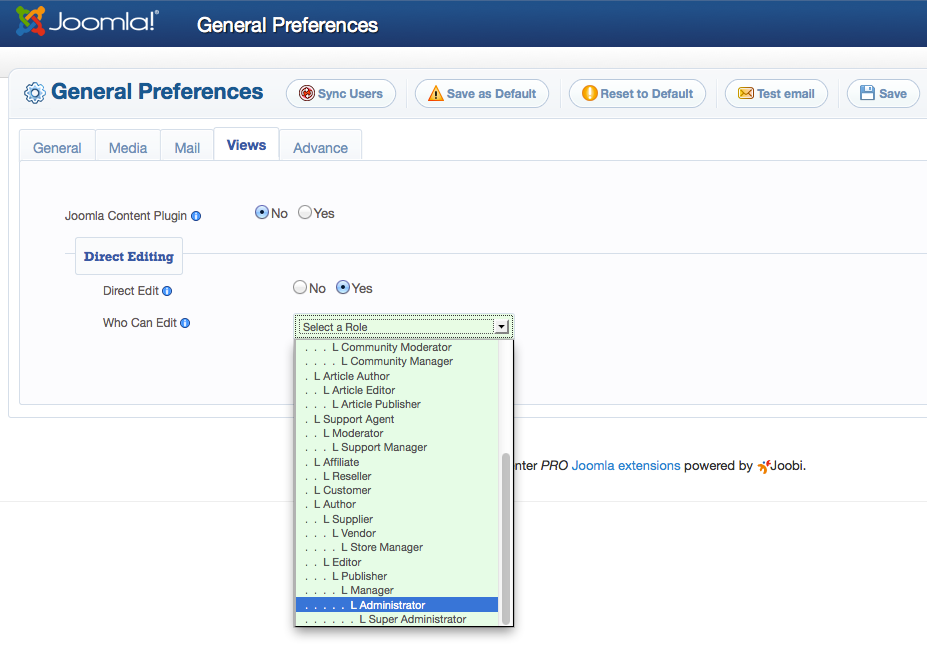
2. Click [ Save ] to save your changes.
Step 2 — Edit a view
You can now begin editing Joobi application views.
Warning: For the application to function properly, some views should not be disabled.
1. Select the Joobi application view you would like to edit.
2. Click the little edit icon next to the element you wish to edit.
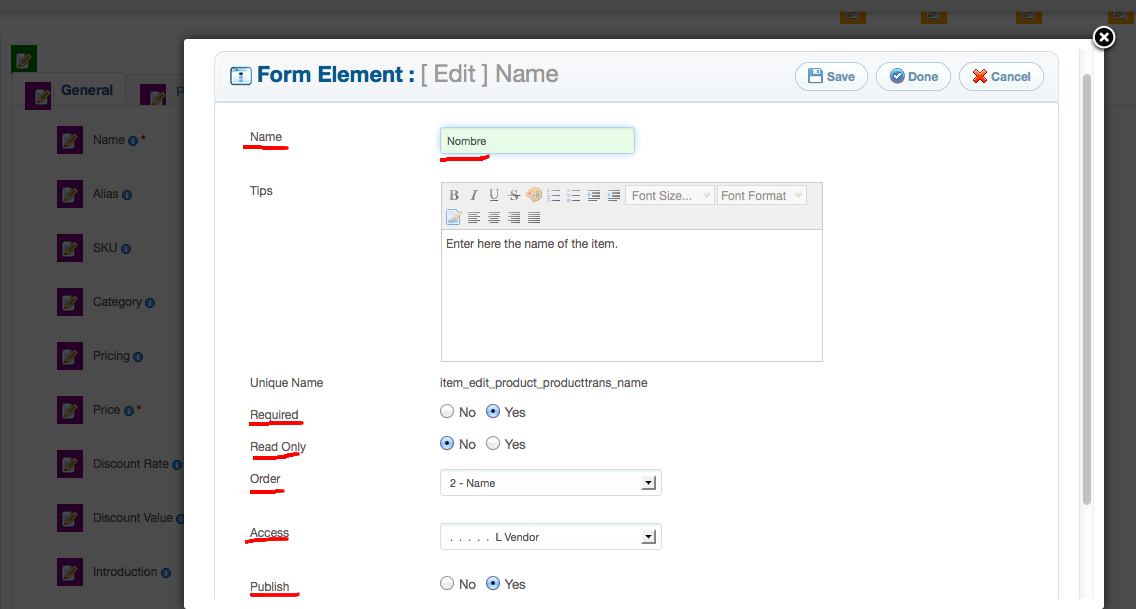
If a view is unpublished it will not be accessible by the user.
3. Click [ Save ] to save your changes.
Republish a disabled element
1. In the admin panel, go to Components >> jCenter >> Design >> Views
A view that is marked as Core is an original view from the application vendor. If the view in NOT marked Core it means you have made a modification or customization.
2. Locate your disabled elements using the filter at the right.
To easily locate an element you need to remember where the element belongs. For instance, if you edited the Product Creation/edition page — it will be located in Form Elements.
You can use the first filter and select "Products", while the second filter "Form".
Take note that not all elements can be found here. You need to know where your elements belong either in the Listing Elements or Form Elements.
The sample image below shows a list of elements in the Product creation/edit page.
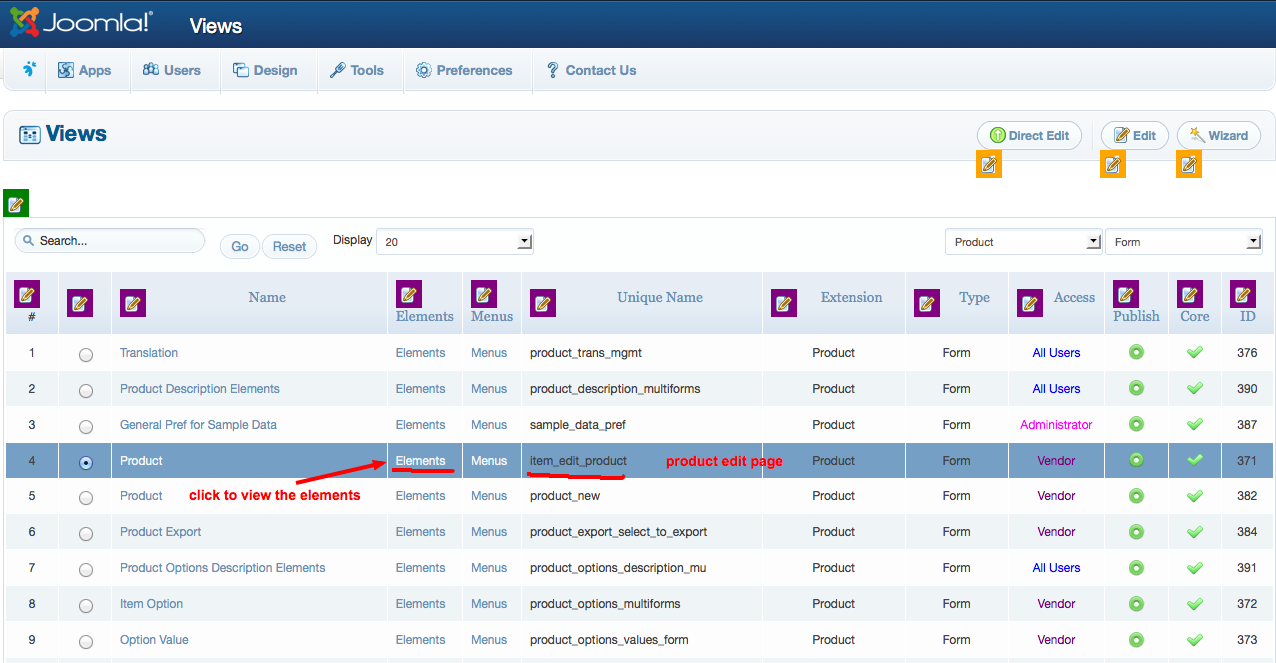
3. Click "Elements" to see the complete list of Elements.
To understand this idea better, let’s follow with an example.
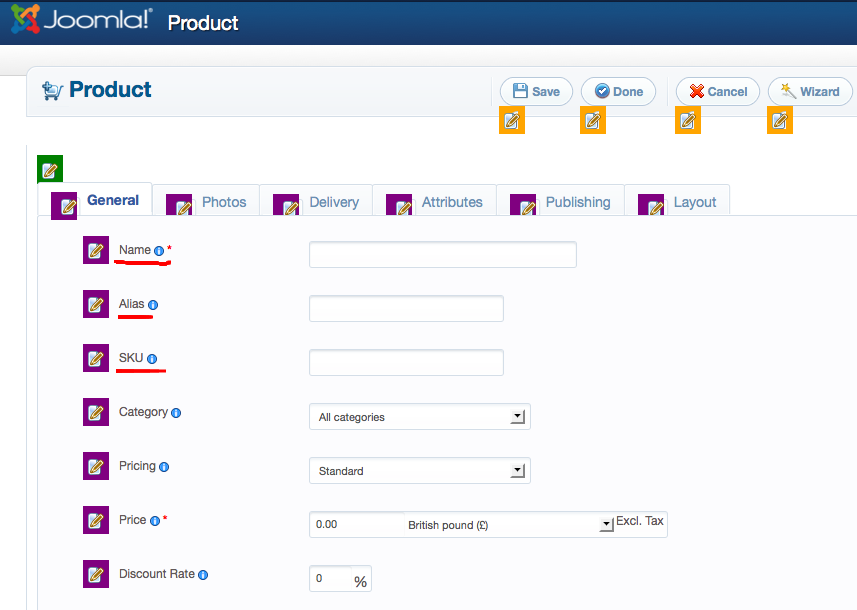
In the Product creation/edition, let's try to edit the option below:
Name >> Translate to Spanish
Alias >> Disable
SKU >> Required
The image below image shows a sample of the original views.
The image below shows a sample after we applied the above changes.
